How to export a WhatsApp chat on iPhone
WhatsApp can turn any chat on your iPhone into a file you can keep or share. It takes five taps and the file comes out as a ZIP.
- 1
Open the chat
Open the one-to-one or group chat you want to export.
- 2
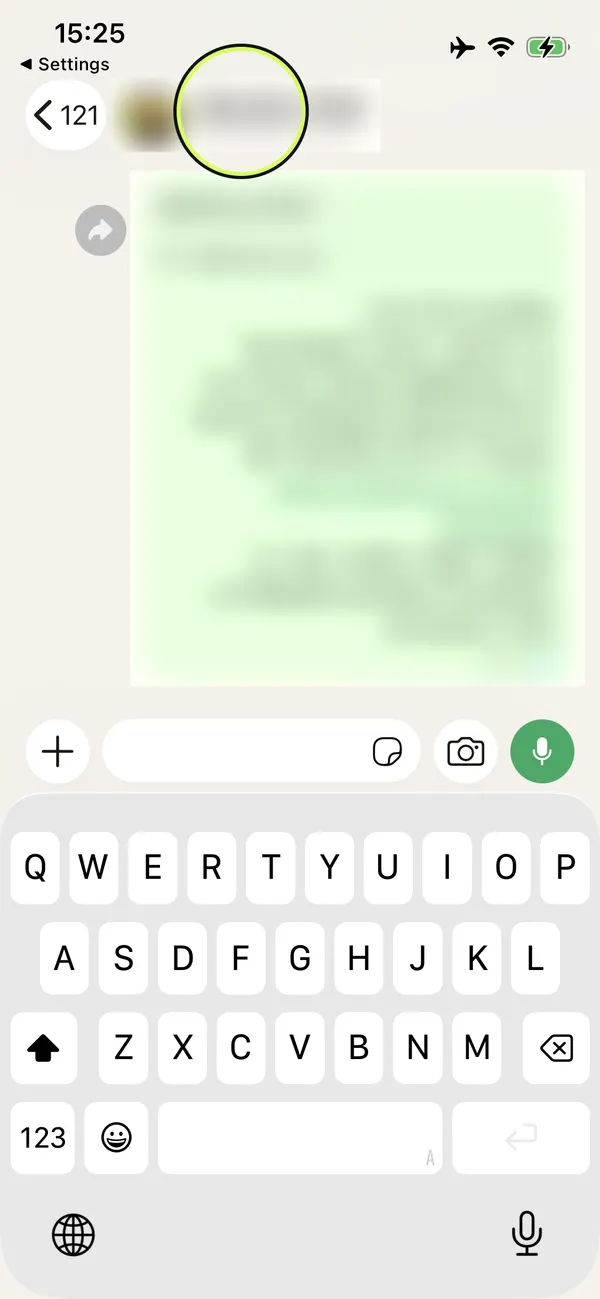
Tap the name
Tap the contact’s name or the group name at the top of the chat.
- 3
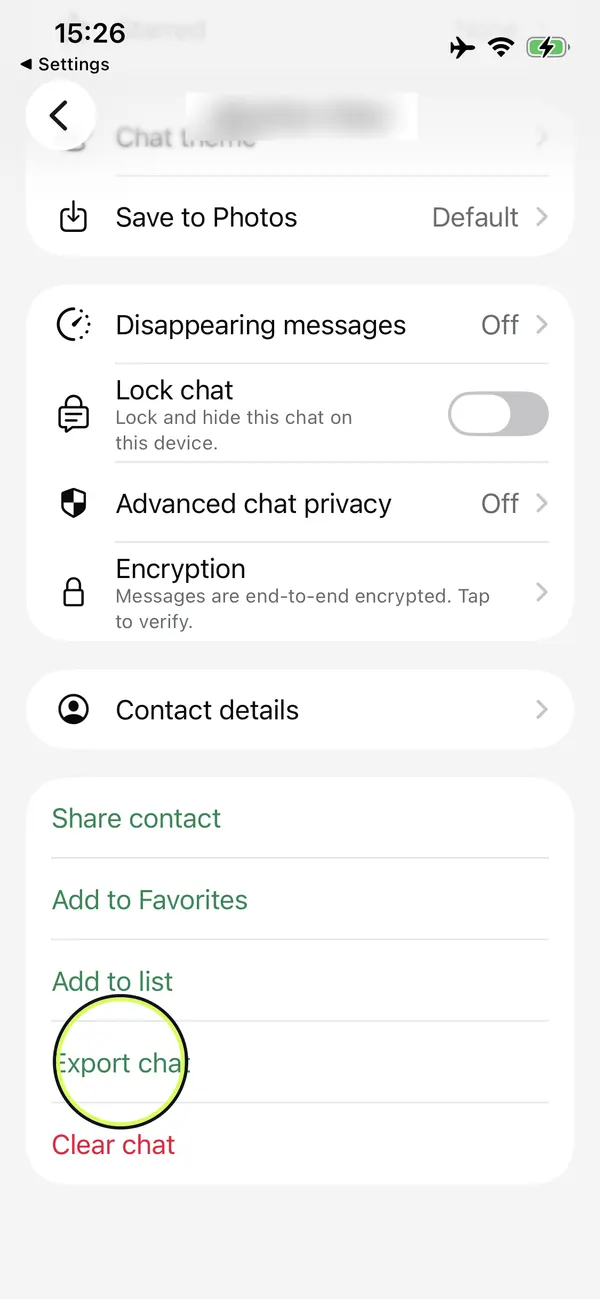
Tap “Export chat”
In the contact or group info, tap “Export chat”.
- 4
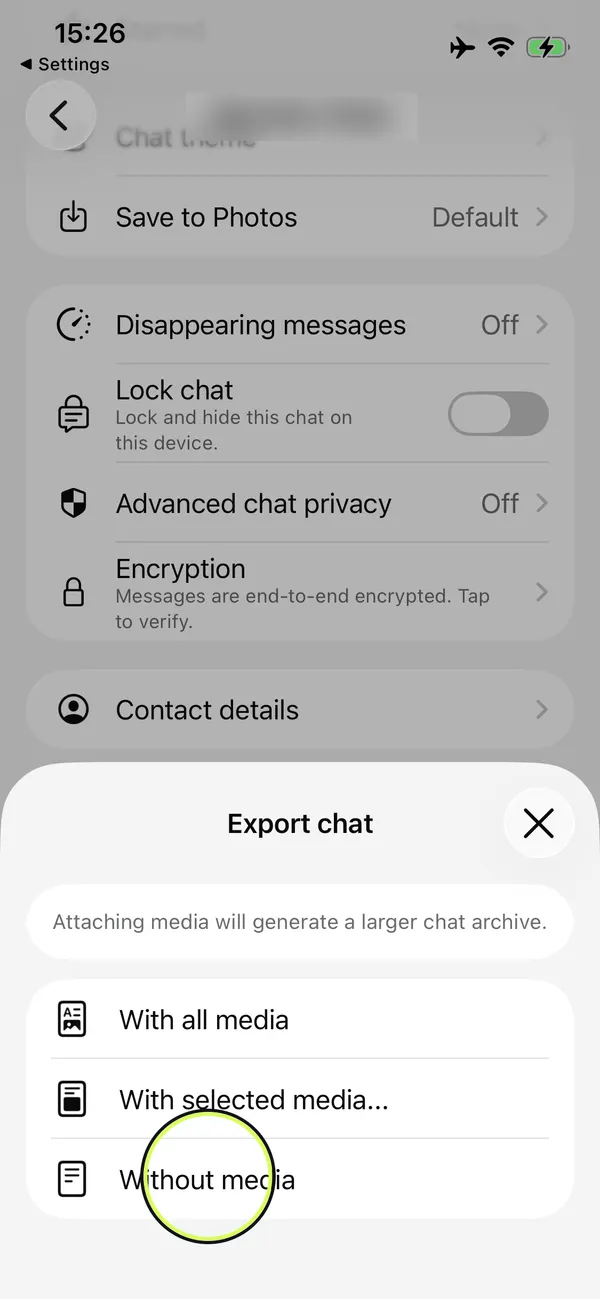
Choose a media option
If the chat has media, choose “With all media”, “With selected media…” or “Without media”. For a text-only file, pick “Without media”.
- 5
Save the file
Pick where it goes, for example “Save to Files”, Messages or Notes. Remember the folder if you save it to Files.
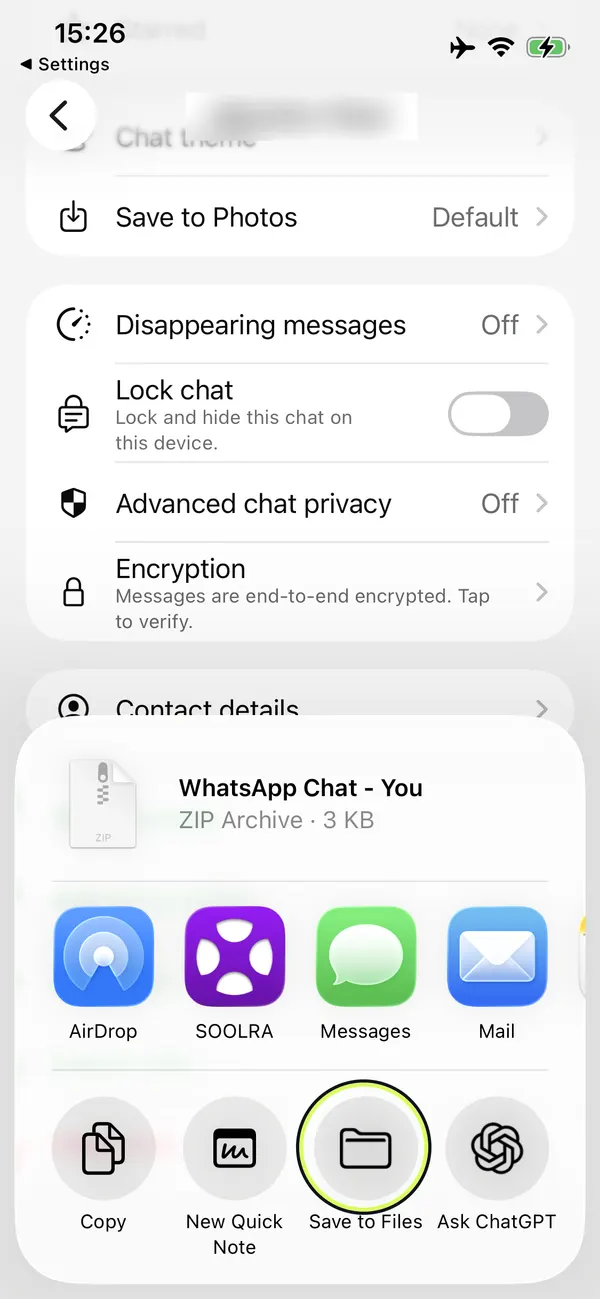
- WhatsApp exports the chat history as a ZIP file.
- View once messages are not included in the export.
- The export is a text file, not a backup, so it can’t be imported back into WhatsApp.
Got the ZIP? Upload it to HeyMarco and let Marco read it. The preview is free, and your messages are deleted after seven days.
Upload a chat