How to export a WhatsApp chat on Android
On Android, the export option sits behind the three-dot menu inside the chat. WhatsApp then hands the file to whichever app you choose.
- 1
Open the chat
Open the one-to-one or group chat you want to export.
- 2
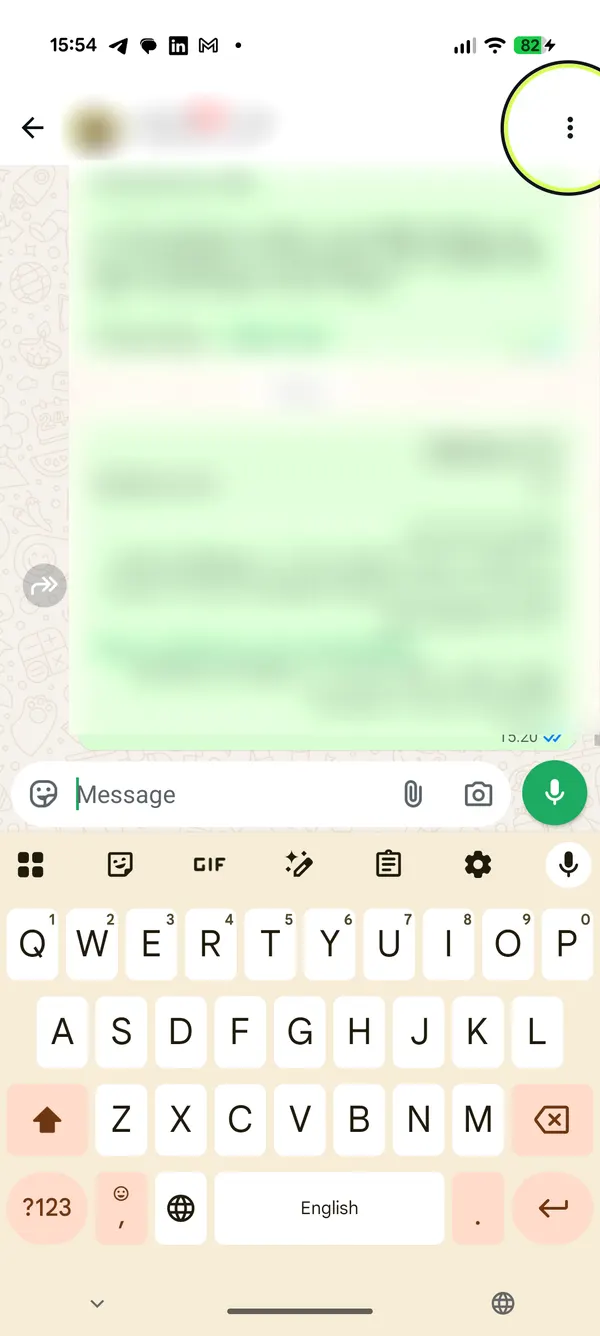
Tap the three dots
Tap “More options” (the three vertical dots) in the top corner.
- 3
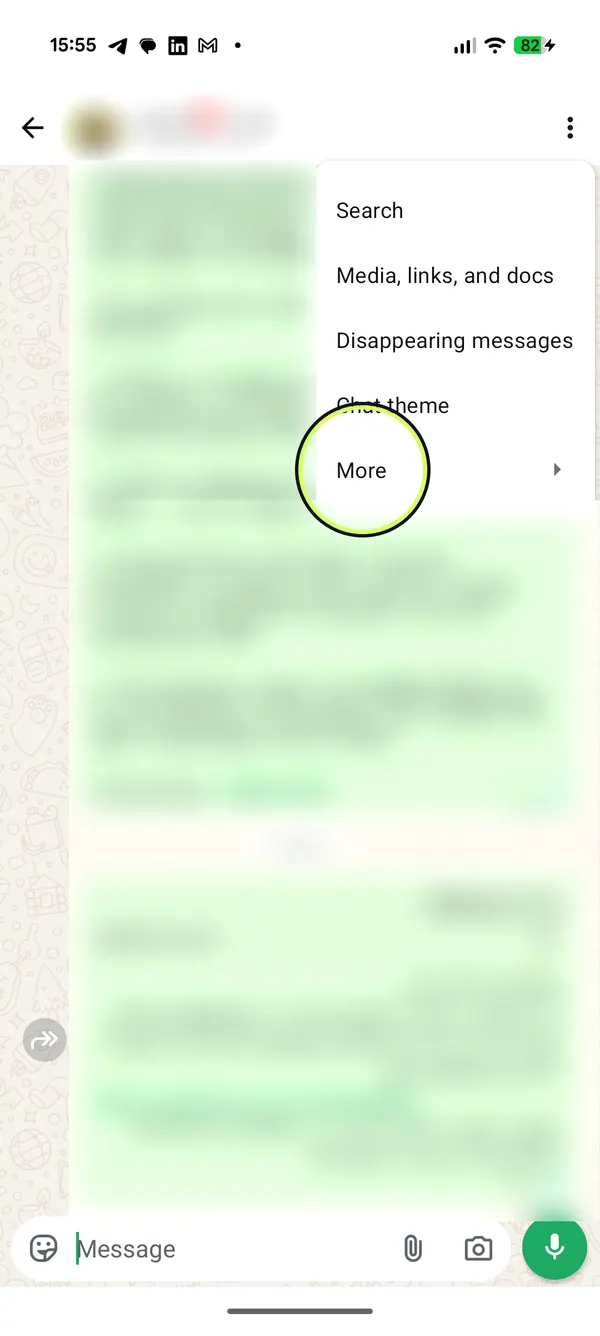
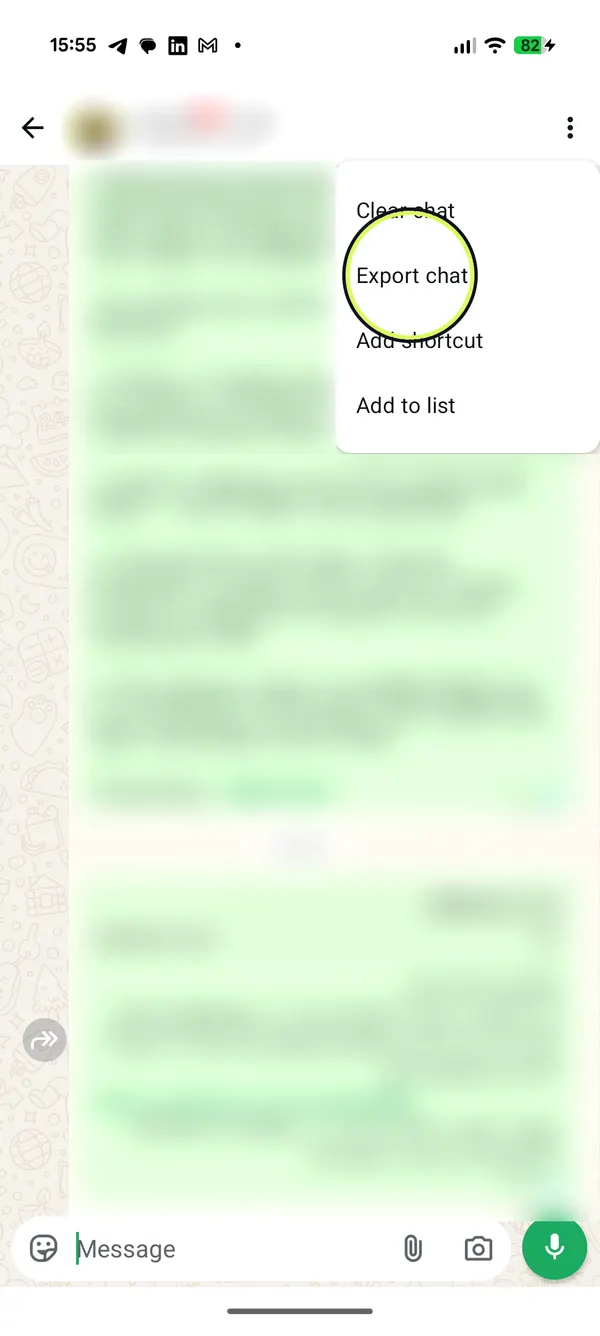
Tap “More”, then “Export chat”
In the menu, tap “More”, then “Export chat”.
- 4
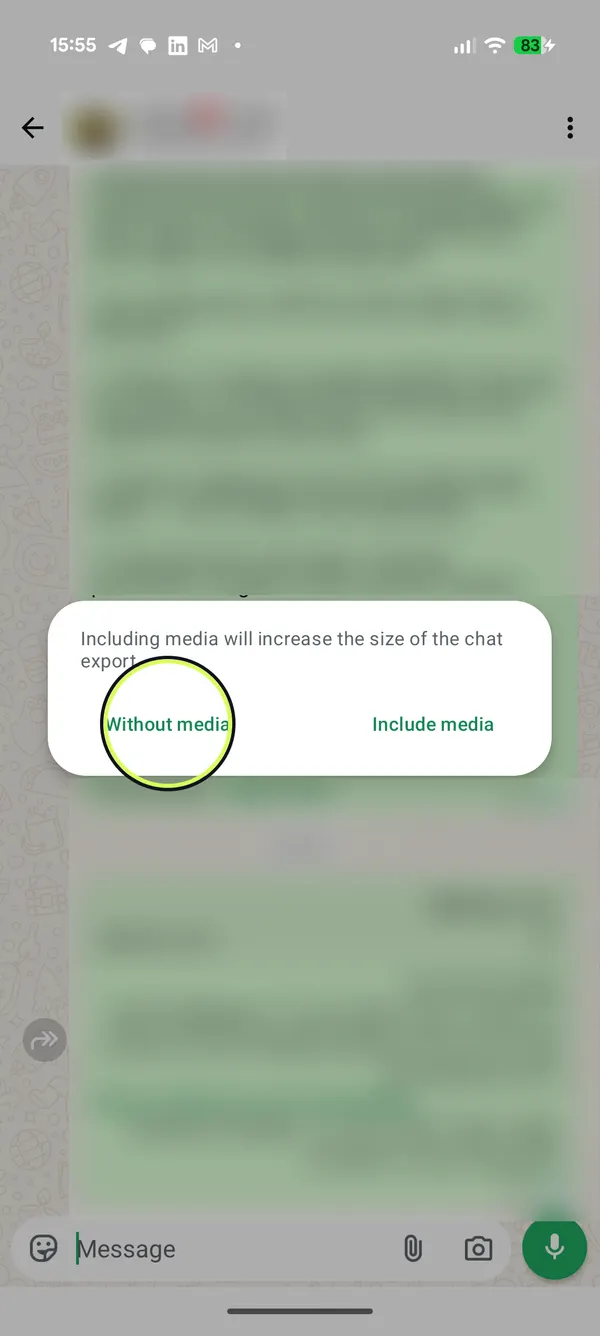
Choose media or not
Tap “Without media” or “Include media”.
- 5
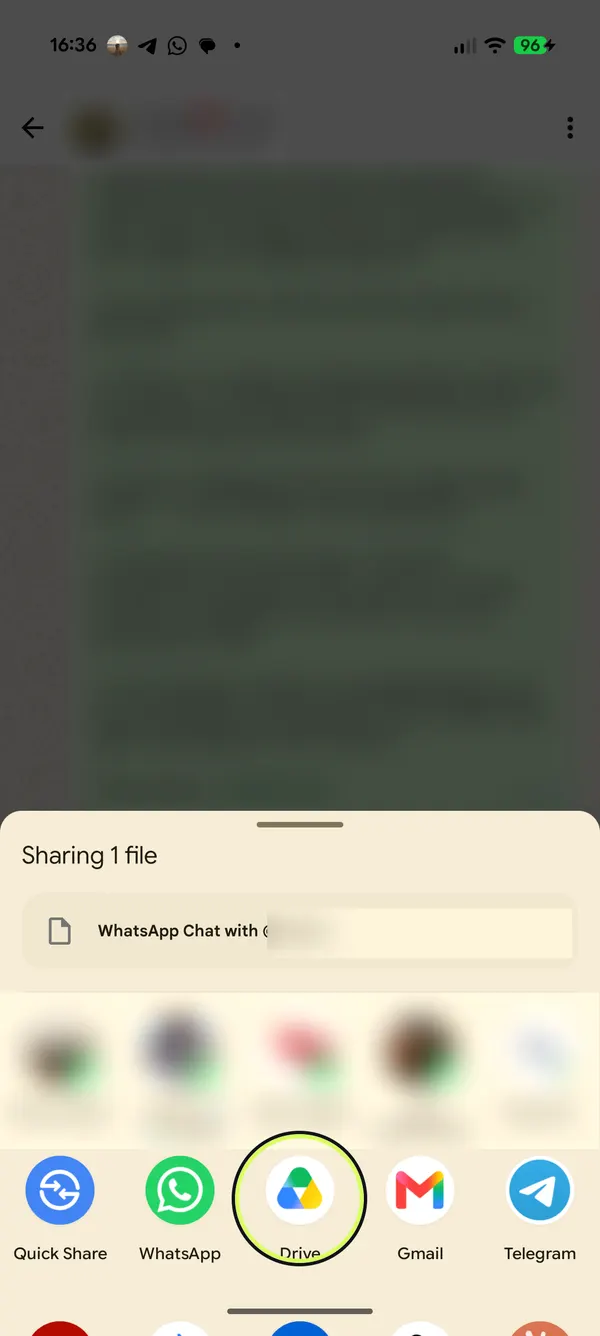
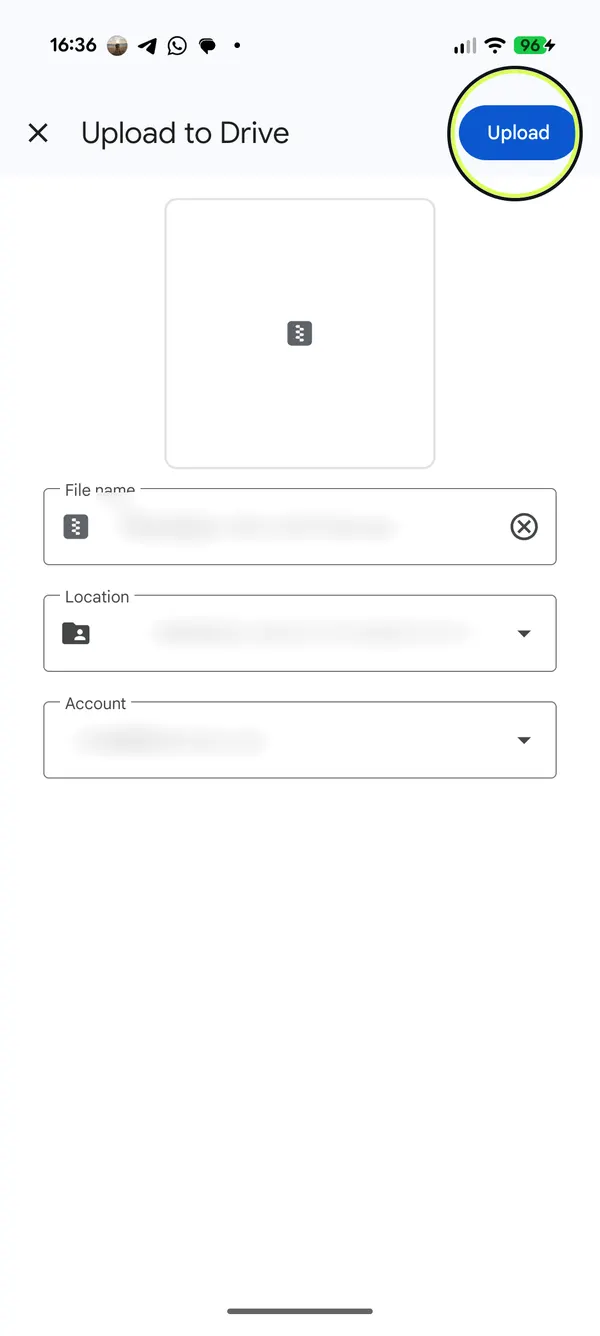
Save it to Google Drive
WhatsApp on Android has no “Save to phone” option, so tap “Drive” in the share list, then “Upload”. Nothing is sent to anyone.
- 6
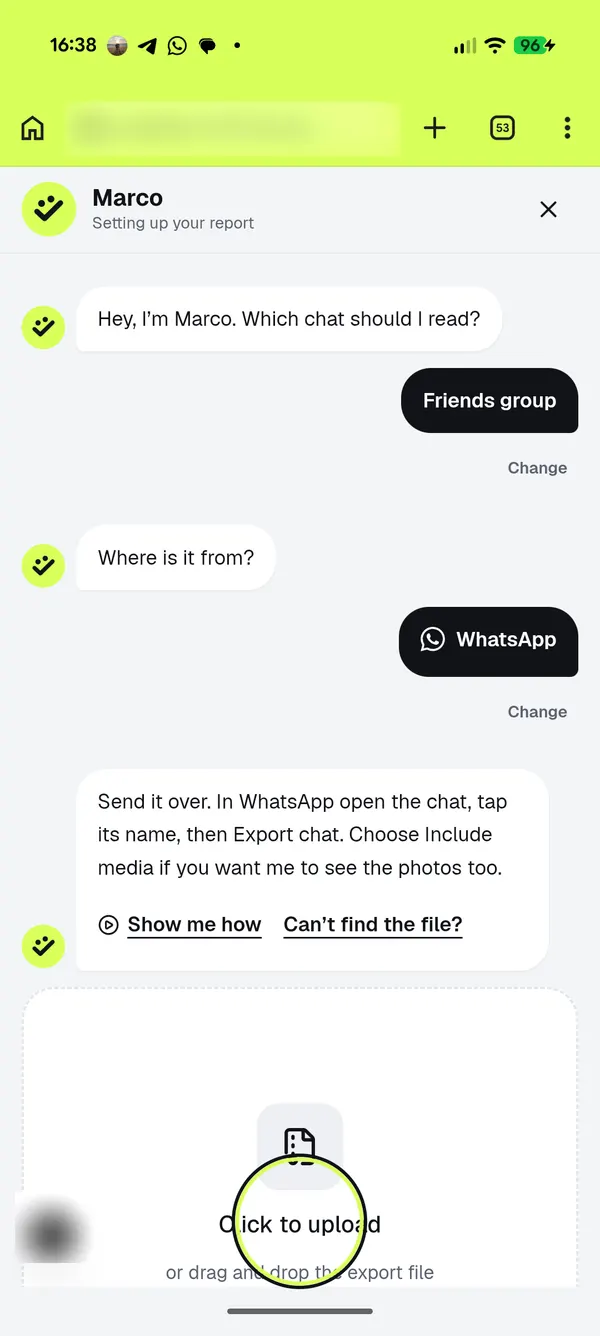
Open HeyMarco and tap the upload box
On heymarco.co, tap “Upload a chat”, pick the kind of chat and WhatsApp, then tap the upload box.
- 7
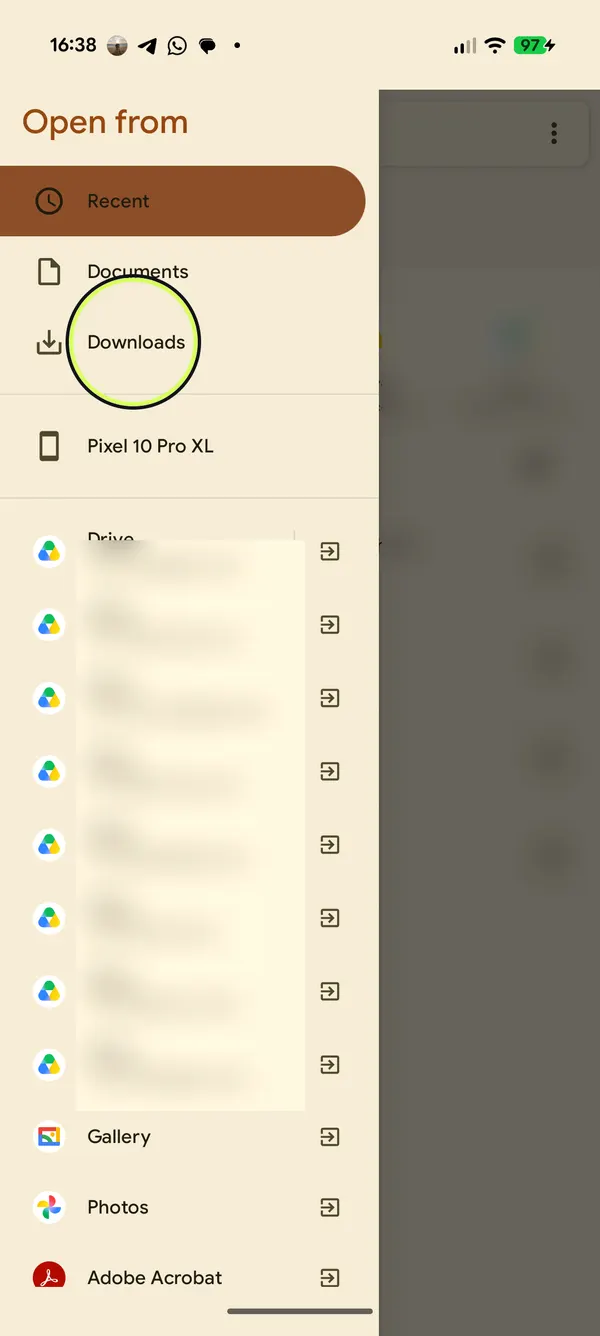
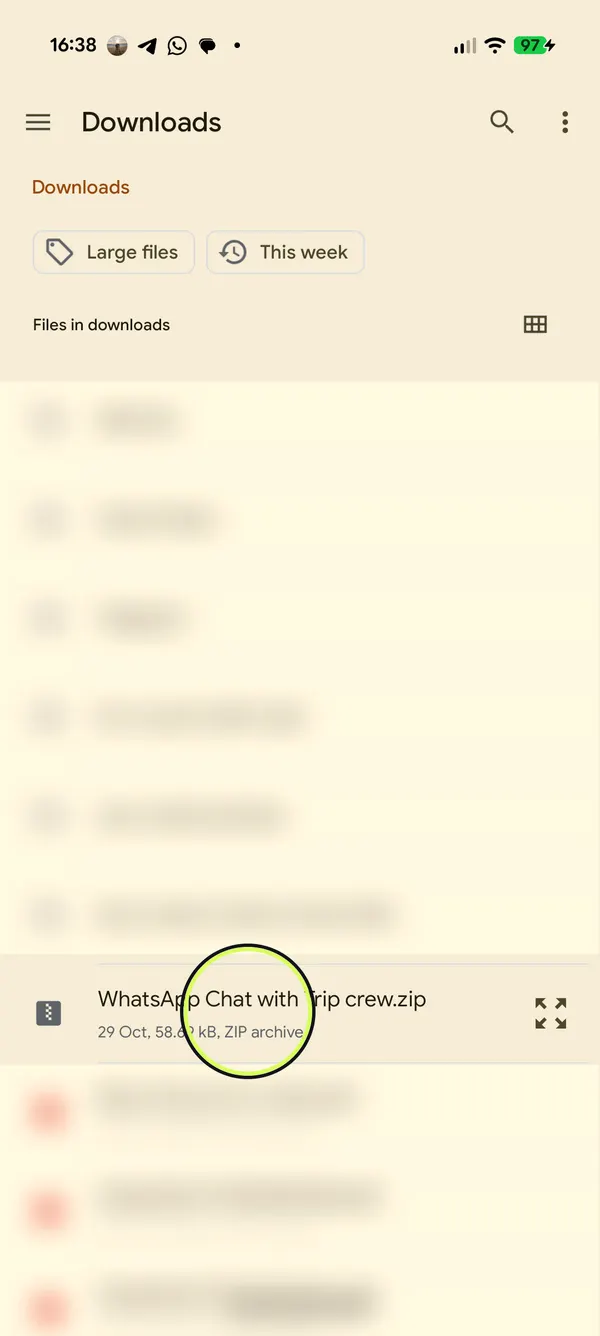
Open your Drive or Downloads
In the file list, tap ☰ and choose your Google Drive account, or “Downloads” if you saved the file there.
- 8
Pick the export
Tap the file called “WhatsApp Chat with …”. It is a ZIP file.
- 9
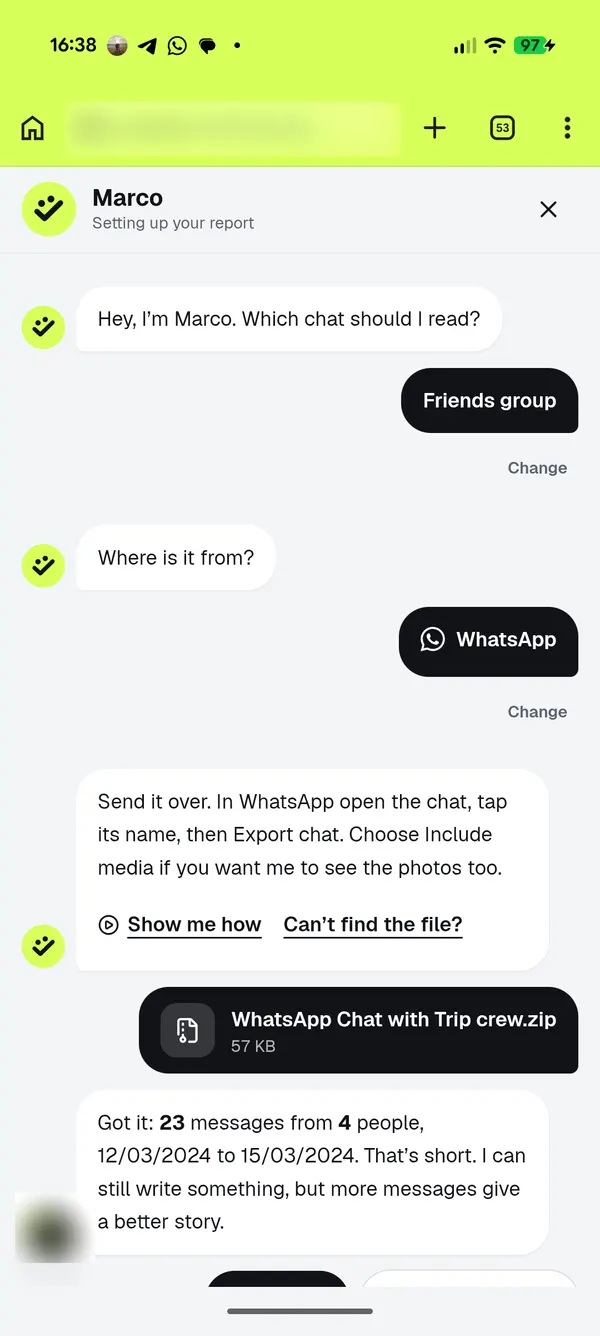
Marco reads it
The file is read in your browser and Marco tells you how many messages and people he found.
- Faster: on heymarco.co in Chrome, tap ⋮ and then “Install app” (some versions say “Install and create shortcut”). HeyMarco then shows up in WhatsApp’s share list: tap it and the chat goes straight to Marco, with no saving or picking.
- With “Include media”, WhatsApp attaches the most recently sent media, not necessarily every photo in the chat.
- The export is a text file, not a backup, so it can’t be imported back into WhatsApp.
Once you have the file, upload it to HeyMarco and let Marco read it. The preview is free, and your messages are deleted after seven days.
Upload a chat