How to export your Instagram chats (DMs)
Instagram can’t export one chat on its own: it packs all your messages into one download. Ask for Messages only, in JSON, and Marco will ask which chat to read when you upload it.
- 1
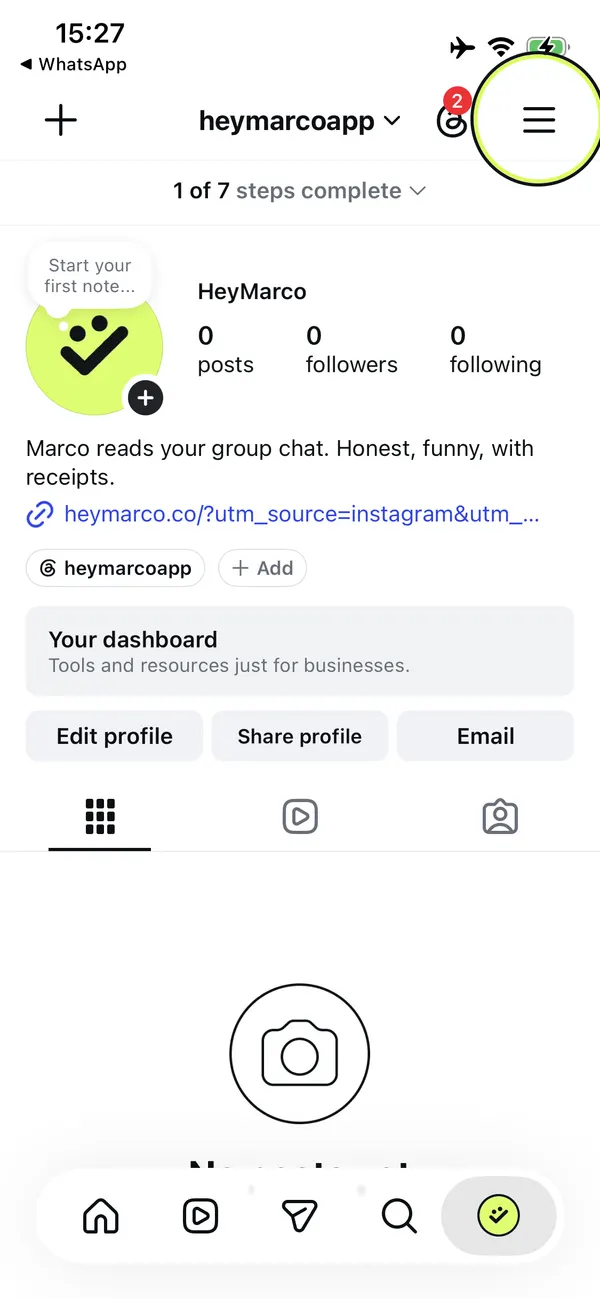
Open the menu
Go to your profile and tap ☰ (the three lines) at the top right.
- 2
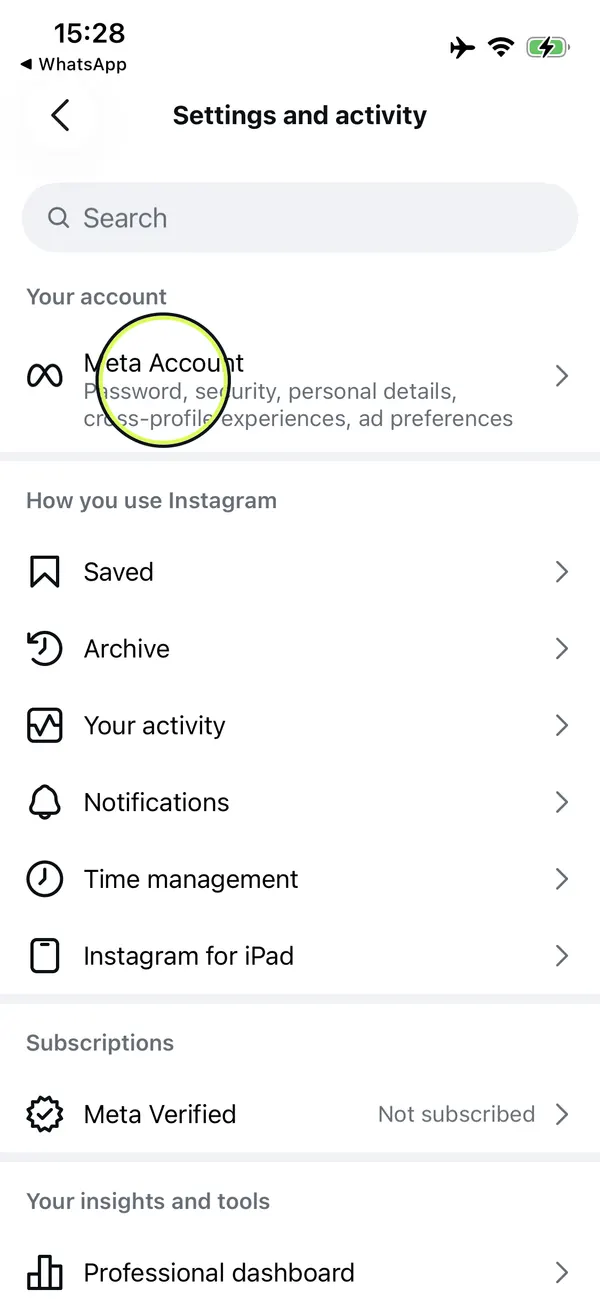
Open “Meta Account”
Tap “Meta Account” at the top of Settings and activity. Older versions call it “Accounts Center”.
- 3
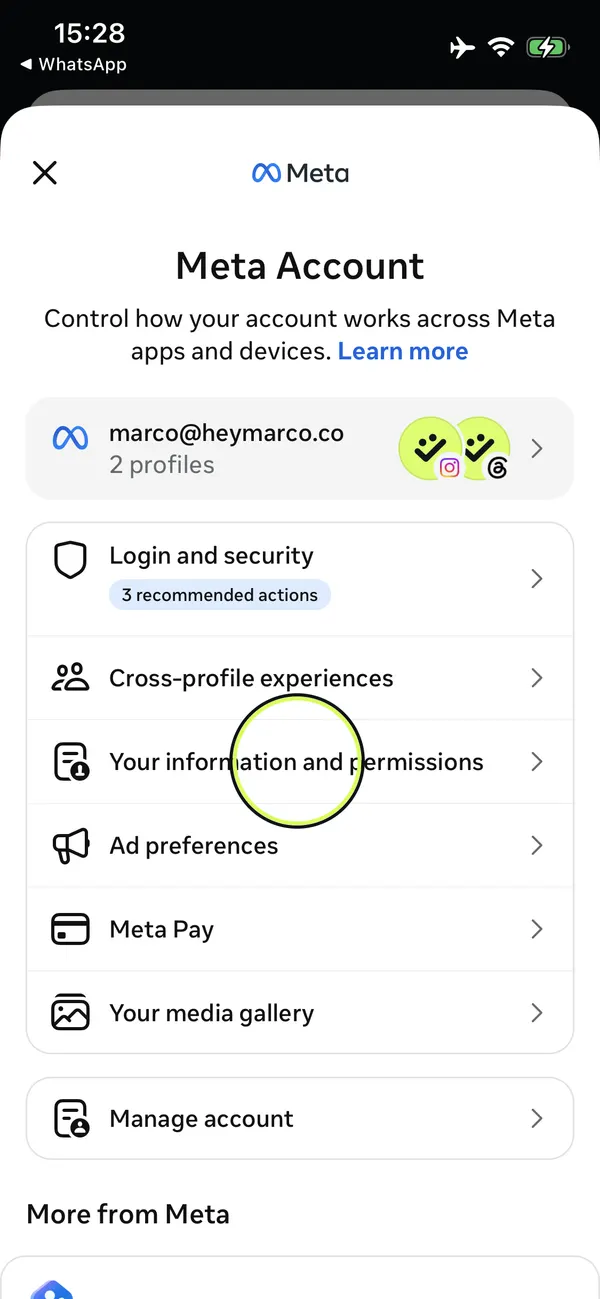
Tap “Your information and permissions”
It’s in the list under your account.
- 4
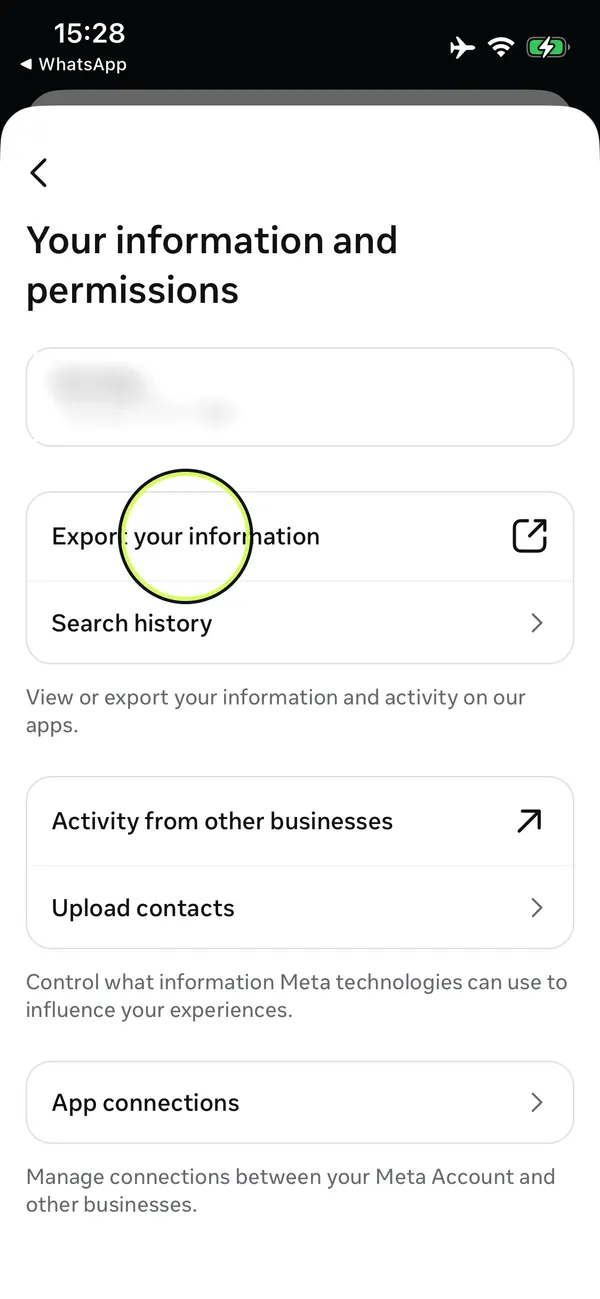
Tap “Export your information”
It opens a page inside Instagram.
- 5
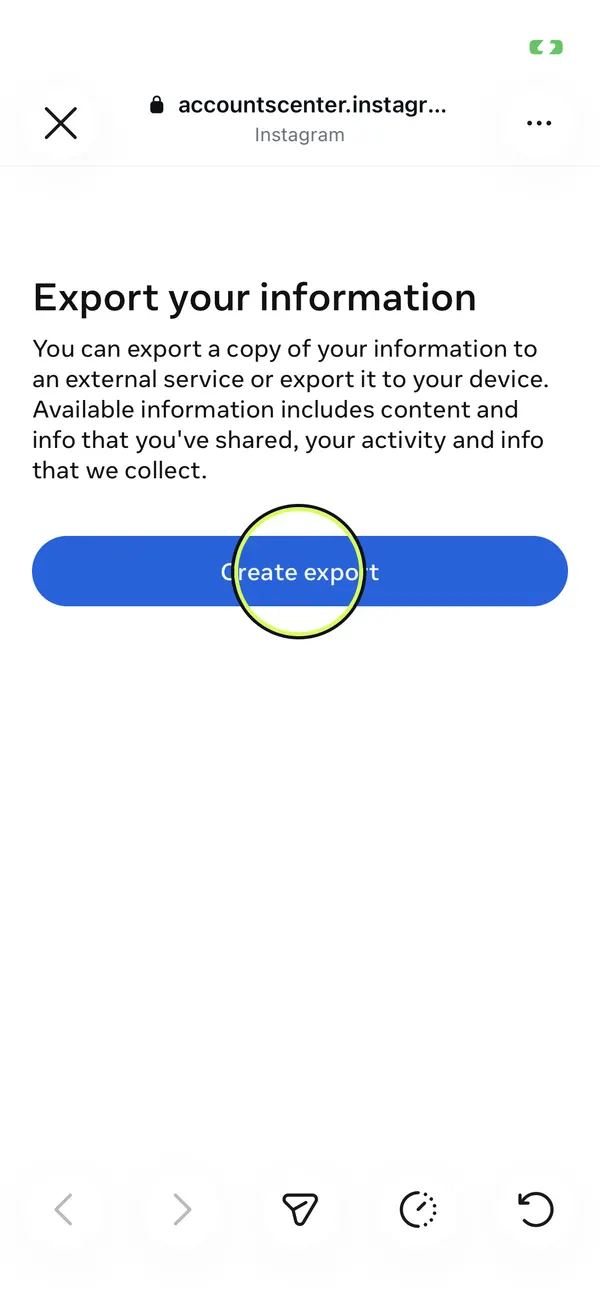
Tap “Create export”
If you have more than one profile, pick your Instagram profile.
- 6
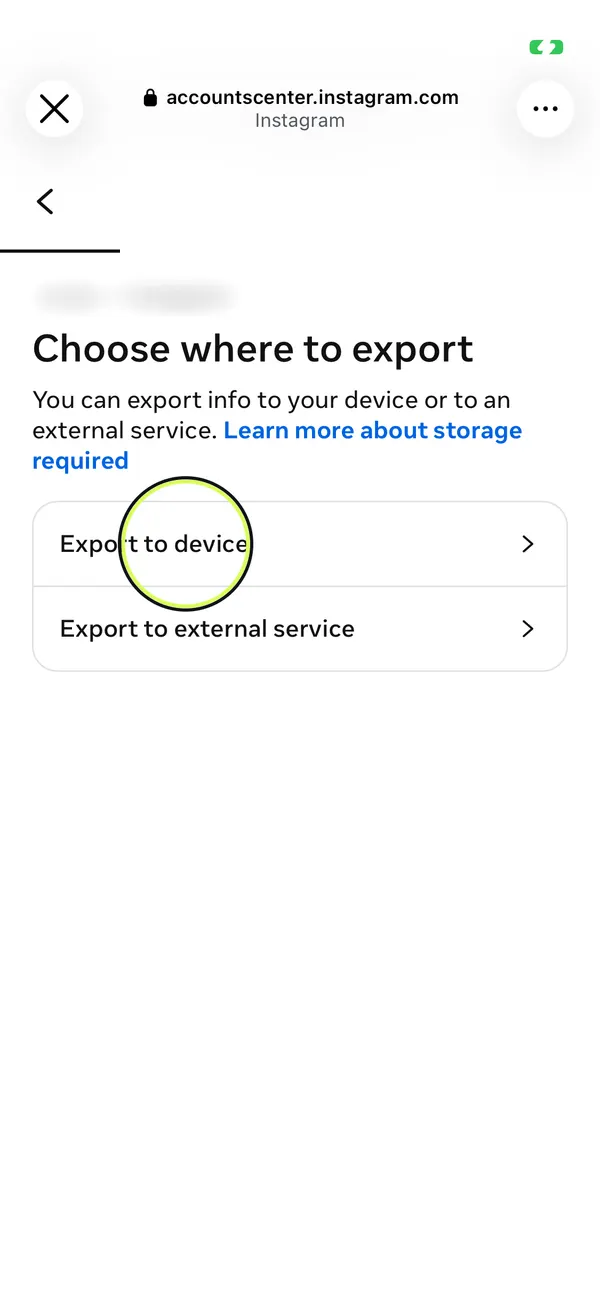
Tap “Export to device”
This makes a file you download, instead of sending it to another service.
- 7
Choose only Messages
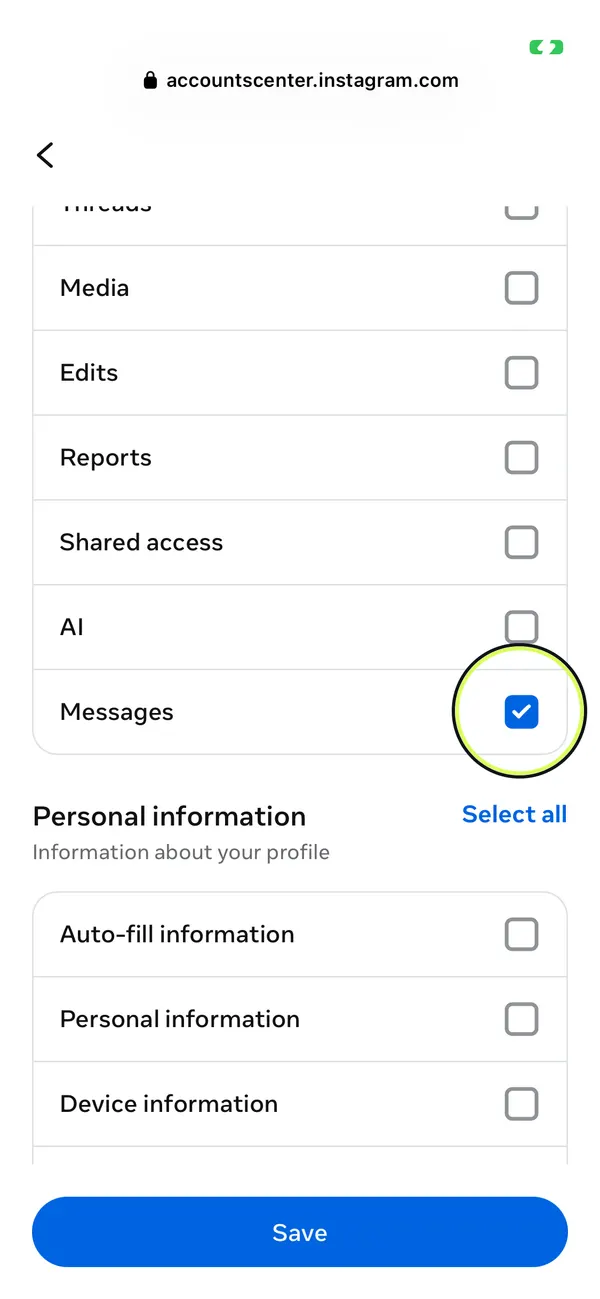
Tap “Customise information”, tap “Clear all”, tick “Messages” and tap “Save”. A smaller download arrives sooner.
- 8
Set the date range to “All time”
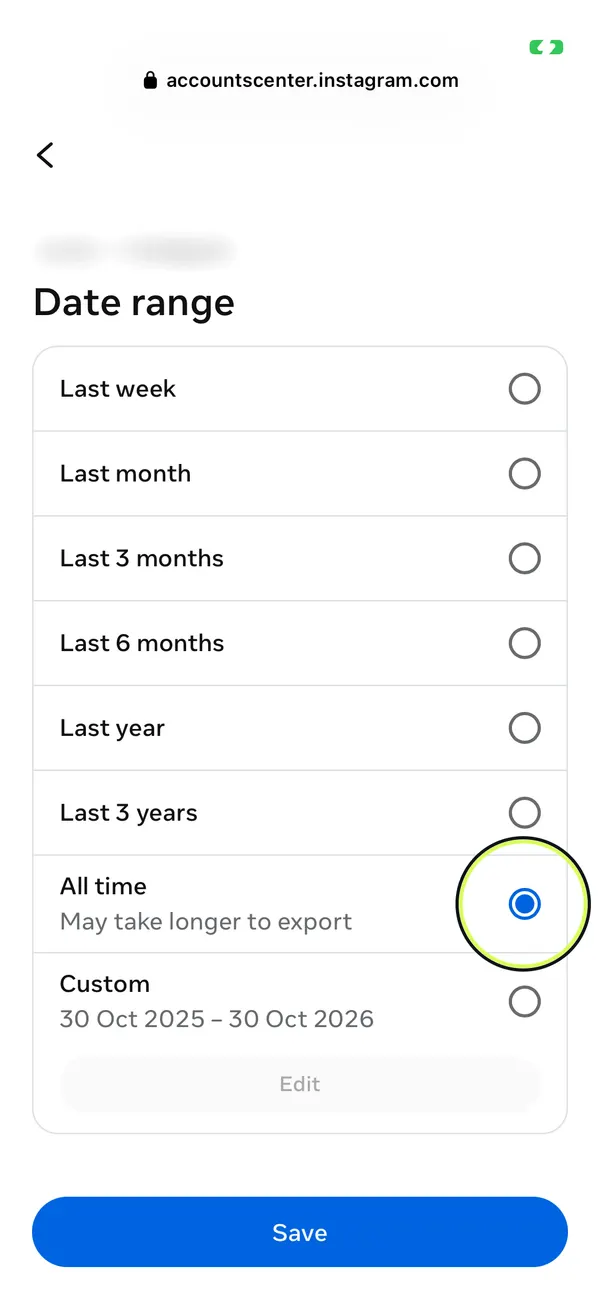
Tap “Date range”, choose “All time” and tap “Save”. The default is only the last year.
- 9
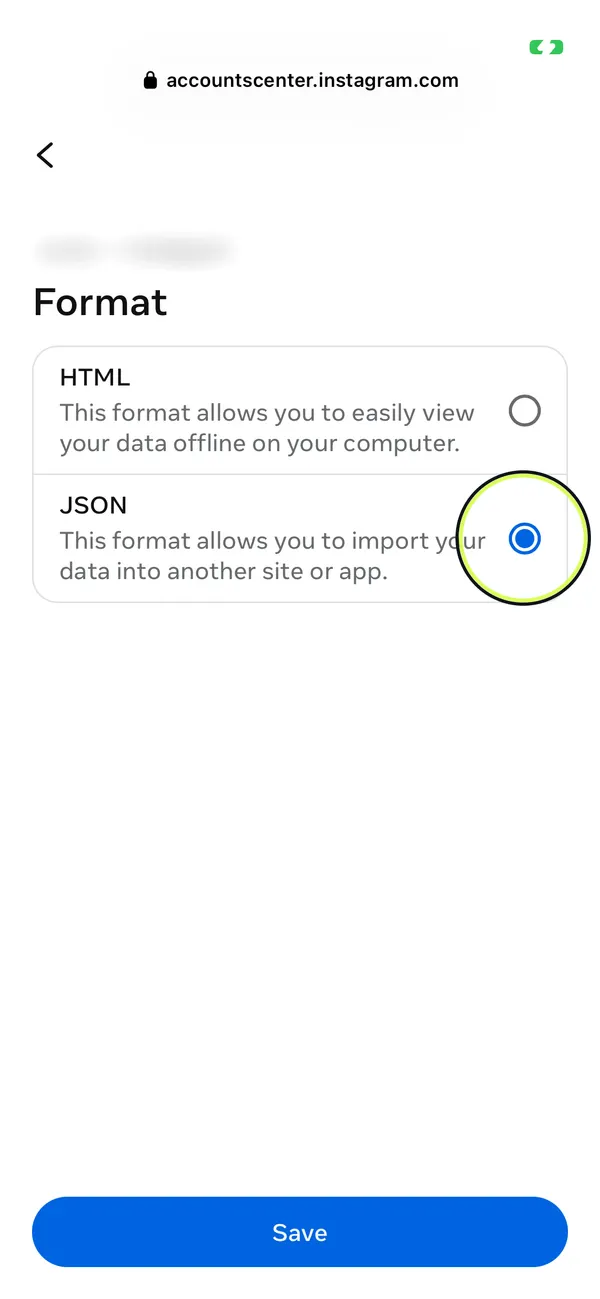
Set the format to JSON
Tap “Format”, choose “JSON” and tap “Save”. HeyMarco reads JSON, not the HTML version.
- 10
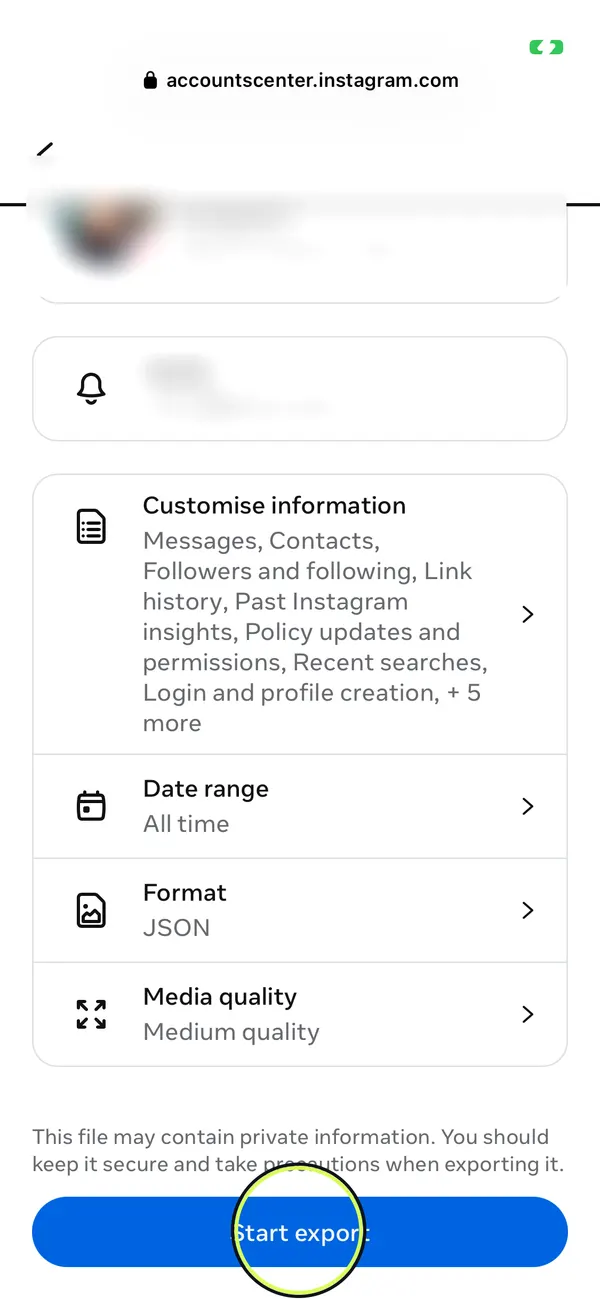
Tap “Start export”
Re-enter your Instagram password if it asks. Meta lets you know by notification and email when the file is ready.
- The file usually takes from a few hours to a few days. You then have four days to download it.
- Download the ZIP and upload it to HeyMarco as it is. If it holds many chats, Marco shows them with their message counts and you pick one.
- Messenger uses the same Meta export, from Facebook’s settings under Meta Account (called Accounts Center in older versions).
Got the ZIP? Upload it to HeyMarco and pick the chat. The preview is free, and your messages are deleted after seven days.
Upload a chat